
How to use the archive
Search
- Searches are targeted at the full text of the bibliographic information, transcription and explanation of each item.
- Searches targeting at specific fields are available in Kyoto University Library Network's OPAC, KULINE.
- Rare materials not yet digitized are searchable in Kyoto University Library Network's OPAC, KULINE. (Rare materials for which bibliographic information has not yet digitized in KULINE are searchable with cataloging cards available in libraries.)
Pick Up (Top page)
- Selected items, such as the national treasure, important cultural properties, and other frequantly accessed materials, are categorized into groups.
- Please click each thumbnail to see the explanation about the group and the links to the items.
Collection
- All the digitized materials are categorized into collections.
- Please click each thumbnail to see the explanation about the collection.
Pick Up / Collection / Subcollection Details
- A Collection with subcollections shows its explanation and the list of subcollections. Please click a link to each subcollection to see its list of items.
- A Pick Up and a Collection without subcollections show their explanation and the lists of items.
- Please click each thumbnail in the list of items to see its Item Details.
Item Details
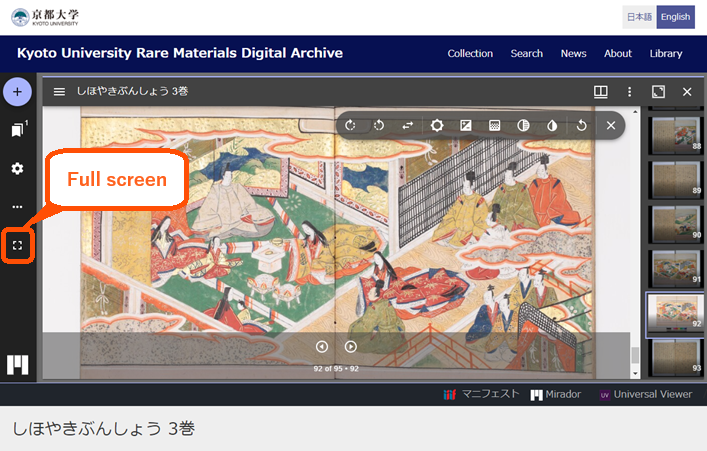
[Viewer]
- The upper half of the screen is a built-in viewer (Mirador3) to view digital images.
- Please click the square mark at the middle left of the viewer to zoom the viewer to full screen.
- Please press ESC to exit full screen mode.
- Please click a link to "Mirador" or "Universal Viewer" to open each viewer in a new browser tab.
- The viewers provide smooth display of images by zooming in and out and scrolling.
[Metadata]
- The lower half of the screen is the metadata of the item, including detailed explanation, links to the first image of each volume if the item has multiple volumes and links to the relevant information.
Transcription and explanation for each image
Transcription and explanation for each image are available for part of the items.
- Open the image in Mirador.
- Click the collapsed menu icon (≡) on the left of title.
- Please click on the fourth speech bubble icon from the top.
- Transcription and explanation are displayed in the field of "Annotations".
 | 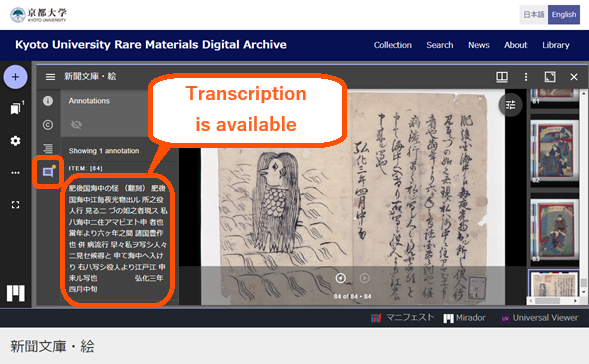 |
Image Downloading
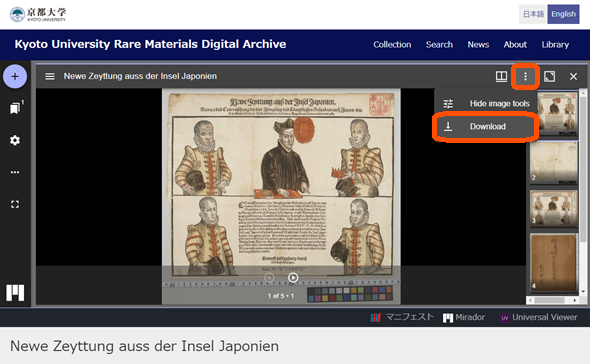
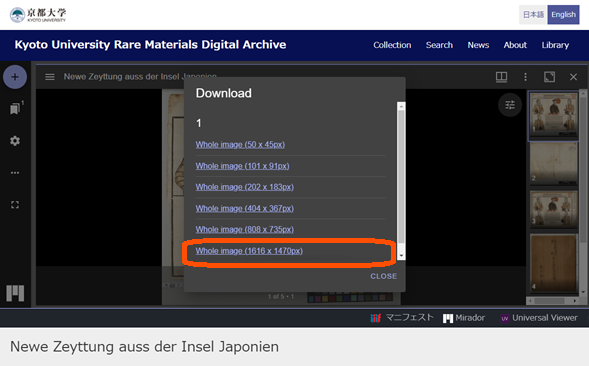
Images can be downloaded one page at a time. Original size images cannot be downloaded.
- Open the image in Mirador. (Images cannot be downloaded with Universal Viewer.)
- Click the ellipsis icon (︙) in the top right corner of the viewer.
- Click the second “Download” from the top.
- In the “Download” popup screen, click “Whole image” to download the image.
 |  |
Content Reuse
- Please refer to Guide For Content Reuse.
[REFERENCE] About the International Image Interoperability Framework (IIIF)
The International Image Interoperability Framework (IIIF) is a set of shared application programming interface (API) specifications for interoperable functionality in image-based resources hosted around the world. A community of libraries, museums, archives, software companies, and other organizations are working together to create, test, refine, implement and promote the IIIF specifications.
IIIF consists of four API specifications: Image API, Presentation API, Authentication API and Search API. Based on these specifications, a variety of open-source software has been developed on a community basis.
See more details at
IIIF official site: https://iiif.io/
IIIF official slides on SlideShare: https://www.slideshare.net/IIIF_io/presentations